
Water appearance
Surface and underwater materials are edited from the same custom Inspector. The exact controls vary with the selected water type and active shader. If a control shown for Fake Perspective or 2.5D water is absent in another mode, that mode’s shader does not use it.
Surface color and patterns
For a regular water surface, Surface Base Appearance provides the main and far colors and their gradient distance/fade. For fake-perspective water, use the corresponding surface color and projection controls exposed by its shader.
Surface Pattern provides procedural Voronoi, texture, or blended patterns where supported. Set the source first, then adjust tint, opacity/intensity, size, and scrolling. Distortion maps break up the pattern; distortion strength controls how far it shifts. Fade distance, feather, and flip controls determine where the pattern fades across the surface.
| Desired result | Adjust |
|---|---|
| Clearer base color | Reduce pattern opacity and reflection contribution. |
| Larger pattern shapes | Increase the pattern’s size value. A larger value produces larger visible pattern shapes. |
| Faster flowing pattern | Increase the relevant scroll speed. |
| Softer pattern boundary | Increase fade feathering. |
| Less repetitive surface | Combine source patterns and vary their scroll/distortion settings. |
The Voronoi / Texture Balance runs from procedural-only at 0 to texture-only at 1 when the combined source mode is selected. A visible pattern is an appearance effect; use a current to move gameplay objects.
Underwater color, waterline, and distortion
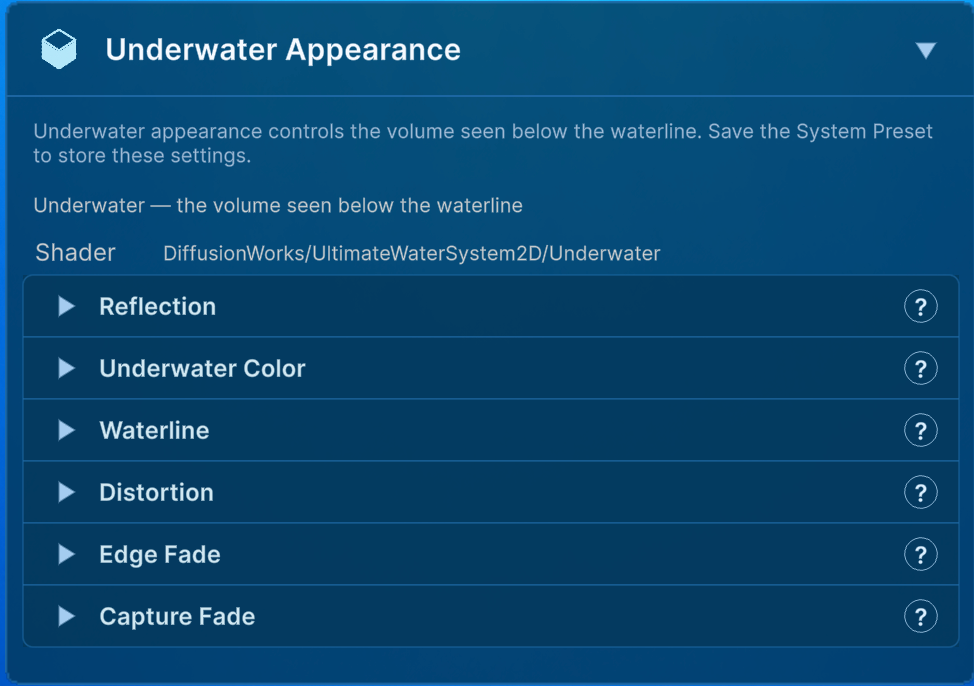
| Group | Use |
|---|---|
| Underwater Color | Top and bottom colors, color contribution, gradient height, and gradient smoothness. Fake-perspective water uses its own tint/capture blend. |
| Waterline | Meniscus color, thickness, smoothness, animated disturbance, and left/right edge fading where available. |
| Distortion | Distortion map, size, scrolling where exposed, strength, and fade controls for the captured scene. |
| Edge Fade | Blends the sides or bottom of the underwater region into transparency. |
| Capture Fade | Fades the underwater scene capture independently of the base color. |
| Underwater Backface | Distortion and opacity of the underside of a 2.5D surface. |
To make deep water darker, start with the underwater bottom color and adjust the gradient height. To soften the boundary of a placed water region, use Edge Fade. To reduce wobble behind the water, reduce distortion strength.
Use Edge Fade to blend 2D water volumes
Underwater Appearance → Edge Fade fades the underwater renderer itself to transparency at its left, right, and bottom boundaries. It is especially useful for 2D water, whose underwater region would otherwise end as a clearly visible rectangle.
| Setting | Effect |
|---|---|
| Enable Edge Fade | Enables transparency fading at the underwater mesh boundaries. It does not change the surface waterline. |
| Left / Right Feather | Normalized width used to fade both horizontal sides. 0 disables side fading; 0.1 fades across 10% of the water width at each side. |
| Bottom Feather | Normalized height used to fade the bottom. 0 disables it; 0.1 fades across 10% of the underwater height. |
Use a small feather when the water should retain a defined boundary and a larger feather when it needs to dissolve into scenery, fog, or another water volume. Because these values are normalized, resizing the water keeps the fade proportional to its dimensions.
Edge Fade changes only what the water looks like. It does not change where sensors detect water or create a dry space. Use an Exclusion Area when the outer water must stop existing in a region, then use Edge Fade on a separate inner 2D water body to blend its visible edges. The Exclusion Areas section describes that workflow.
Note: Controls vary between regular and fake-perspective shaders. An absent material property cannot be enabled merely by following a screenshot from another water mode.