
Reflections and scene captures
Reflections are available for 2.5D Water, Simple Water 2D, and 2D Water with Fake Perspective Surface enabled. Plain 2D Water without the fake surface does not support reflections. For a supported water type, open its Reflection section and enable reflections. Capture cameras and textures are created and connected automatically.
Use Reflection Layer Mask to select GameObject layers and Reflection Sorting Layers to select 2D sorting layers. These are separate filters. Then adjust reflectivity, fade, and distortion to blend the captured image with the water. Generated reflection maps are outputs, not textures you normally paint or assign manually.
Choose the reflection workflow for the water type
| Water type | Reflection behavior | Settings to establish first |
|---|---|---|
| 2.5D Water | Reflects across the real top surface. Z position, the reflection clip plane, and surface depth all affect the result. | Camera placement, Depth (Z), capture masks, Reflection Offset, update rate, and texture scale. |
| 2D Water with Fake Perspective Surface | Keeps orthographic gameplay while presenting a projected surface strip. Reflections are rendered on the fake surface, and their axis can be adjusted without changing the gameplay waterline. | Axis Y Offset, Reflected Camera Y Offset, capture masks, and the shared sprite waterline. |
| Simple Water 2D | Uses the Simple Water shape’s own reflection configuration and axis. | Reflection axis, axis/camera offsets, capture masks, and quality/update limits. |
Start by making the capture include the correct objects before increasing reflectivity or distortion. A missing object is normally a layer-filter problem; stronger reflection settings cannot restore content excluded from the capture.
| Setting | Effect |
|---|---|
| Texture Scale | Capture resolution multiplier; lower values trade detail for lower rendering cost. |
| Update Every N Frames | 1 updates every frame; 2 every other frame. Larger values can make moving reflections less smooth. |
| Only When Visible | Avoids capture updates while the water is offscreen. |
| Main Camera Only | Restricts which camera drives capture updates. |
| Max Distance | Limits capture work at a distance; 0 means unlimited. Reflection distance is described as horizontal distance in the Inspector. |
| Reflection Offset | Adjusts the perspective reflection clip plane. |
| Axis Y Offset | Adjusts the fake-perspective or Simple Water reflection axis. |
| Reflected Camera Y Offset | Shifts the mirrored camera vertically in those workflows. |
Sorting layers and the Camera Sorting Layer Texture
The underwater shaders use URP’s Camera Sorting Layer Texture to read the already-rendered scene and display it through underwater color, distortion, edge fading, and exclusion masks. Configure this on the 2D Renderer Data asset used by the camera:
- Enable Camera Sorting Layer Texture.
- Give the water surface and underwater renderer separate sorting layers.
- Place the surface layer earlier and lower in the render order.
- Place the underwater layer later and higher in the render order.
- Set Foremost Sorting Layer to the final layer immediately before the underwater layer. If the surface layer directly precedes underwater, select the surface layer as the boundary.
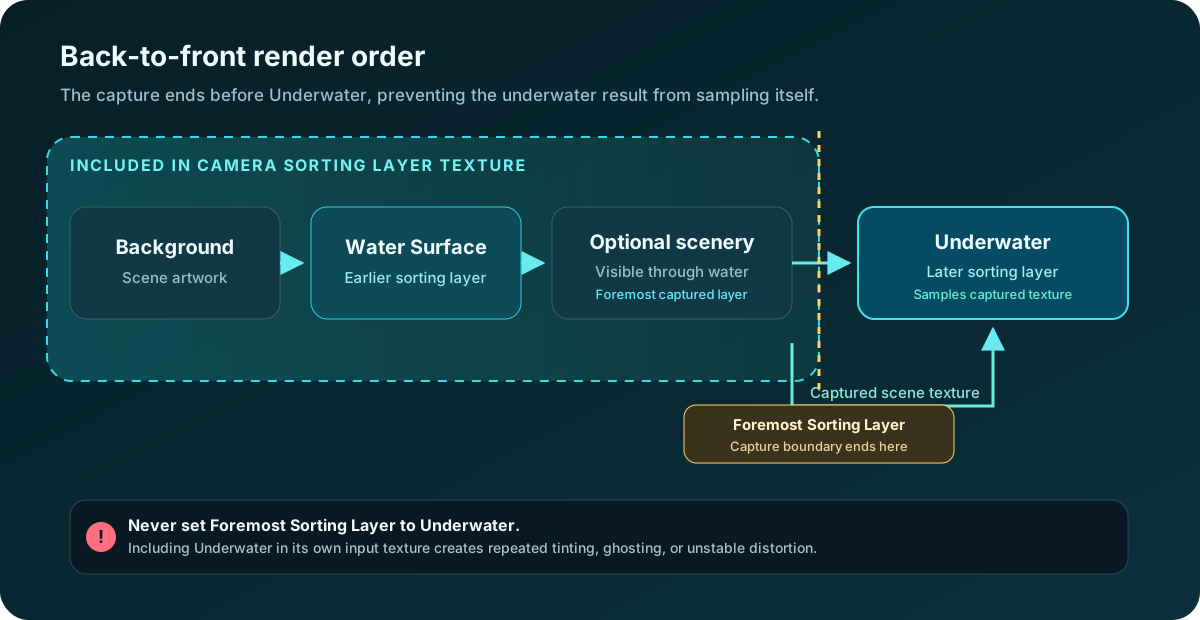
Do not set Foremost Sorting Layer to the same layer used by the underwater renderer. That would include the underwater result in the texture that the underwater shader itself samples, creating a visual feedback loop. Depending on the renderer and frame history, this can appear as repeated tinting, ghosting, unstable distortion, or the previous underwater result feeding back into the current frame.
A simple back-to-front order can be:
| Order | Example sorting layer | Role |
|---|---|---|
| Earlier | Background | Scene artwork behind the water. |
| Earlier | Water Surface | Surface renderer and the last captured scene content when no extra layers are needed. |
| Boundary | Foremost captured layer | The final layer included in the Camera Sorting Layer Texture; it must remain before Underwater. |
| Later | Underwater | Draws the underwater treatment while sampling the captured texture. |
| Latest | Foreground / UI | Content that must remain crisp and appear in front of the underwater treatment. |
You can add more sorting layers between the surface and underwater layers to control the composition. Put scenery on a layer included before the Foremost boundary when it should be visible through the underwater shader. Put selected effects or scenery later when they should avoid that capture, and put content after the Underwater layer when it must draw cleanly in front. After adding intermediate layers, keep the Foremost boundary on the last captured layer directly before Underwater.
Sorting Layer and Order in Layer control 2D drawing order. They do not replace Z depth for the 2.5D surface, which also uses ZWrite and depth testing. Confirm both the object’s sorting layer and its position relative to the surface mesh when an object is unexpectedly hidden.
Underwater Surface Capture captures the top surface for viewing from below. It has its own quality and update settings. When its maximum distance is exceeded, the capture is cleared rather than retained as a frozen image.
Reflections render the selected scene layers into another texture, so they are one of the first features to profile. Begin with Texture Scale = 0.5, enable Only When Visible and Main Camera Only, and try Update Every N Frames = 2. Increase quality only when the lower capture resolution or update rate is visible during actual gameplay. Restrict both layer masks so the reflection camera does not draw objects that cannot appear in the water.
For characters and other 2D renderers that must switch cleanly between above-water and underwater reflection behavior, add the Sprite Reflection utility. It chooses the correct reflection axis from the configured sprite waterline and the renderer’s bottom edge. The generated reflection camera and proxy objects are managed by the water system.